
General
Data Sources | General
Fields & Formulas
Data Sources | Fields & Formulas
Connections
Data Sources | Connections
Creating & Sharing
Reports | Creating & Sharing
Report Editing
Reports | Editing
Report Config
Reports | Report Config
Chart Cards
Reports | Chart Cards
Content Cards
Reports | Content Cards
General
Data Chat | General
General
AI Visibility | General
General
AI | General
MCP
AI | MCP
General
Clients | General
General
Integrations | General
Webhook — Local & Reviews
Integrations | Webhook — Local & Reviews
Webhook — Automation Payloads
Integrations | Webhook — Automation Payloads
Webhook — Other
Integrations | Webhook — Other
Account & Billing
Settings | Account & Billing
Users
Settings | Users
Comments & Notes
Settings | Comments & Notes
Notifications
Settings | Notifications
FAQ
Settings | FAQ
Other
Settings | Other
General
KPI Forecasting | General
Settings & Status
KPI Forecasting | Settings & Status
Seasonality
KPI Forecasting | Seasonality
Metrics by Source
KPI Forecasting | Metrics by Source
General
Budget Tracking | General
General
Anomaly Detection | General
General
Automation Jobs | General
Change History
Automation Jobs | Change History
URL & Page Checkers
Automation Jobs | URL & Page Checkers
Local & Reviews
Automation Jobs | Local & Reviews
Search Console
Automation Jobs | Search Console
Managing Insights
Insights | Managing Insights
Change History
Insights | Change History
URL & Page
Insights | URL & Page
Local & Reviews
Insights | Local & Reviews
Other Insight Types
Insights | Other Insight Types
General
Local Listings | General
Profiles & Content
Local Listings | Profiles & Content
Performance & Activity
Local Listings | Performance & Activity
Media
Local Listings | Media
Categories & Services
Local Listings | Categories & Services
General
Reviews | General
General
Social Posts | General
Creating Posts
Social Posts | Creating Posts
Managing Posts
Social Posts | Managing Posts
Pipelines
Data Warehouse | Pipelines
Access & Credits
Data Warehouse | Access & Credits
Source Fields
Data Warehouse | Source Fields
Data Studio
Data Warehouse | Data Studio
BigQuery
Data Warehouse | BigQuery
General
Clients | General
General
Integrations | General
MCP
Integrations | MCP
Webhook — Automation Payloads
Integrations | Webhook — Automation Payloads
Webhook — Local & Reviews
Integrations | Webhook — Local & Reviews
Webhook — Other
Integrations | Webhook — Other
Account & Billing
Settings | Account & Billing
Users
Settings | Users
Comments & Notes
Settings | Comments & Notes
Notifications
Settings | Notifications
FAQ
Settings | FAQ
Other
Settings | Other
Settings | Account & Billing
Insights | Managing Insights
Integrations | General
Settings | Comments & Notes
Settings | Users
Reports | Creating & Sharing
AI | General
AI | General
AI Visibility | General
AI Visibility | General
AI Visibility | General
Integrations | Webhook — Other
Reports | Content Cards
Anomaly Detection | General
Anomaly Detection | General
Anomaly Detection | General
Insights | Other Insight Types
Anomaly Detection | General
Integrations | Webhook — Other
Anomaly Detection | General
Local Listings | General
Reviews | General
AI Visibility | General
Reports | Chart Cards
Local Listings | Profiles & Content
Data Warehouse | Pipelines
Integrations | Webhook — Automation Payloads
Integrations | Webhook — Automation Payloads
Integrations | Webhook — Automation Payloads
Integrations | Webhook — Automation Payloads
Integrations | Webhook — Local & Reviews
Integrations | Webhook — Automation Payloads
Integrations | Webhook — Local & Reviews
Integrations | Webhook — Local & Reviews
Integrations | Webhook — Local & Reviews
Integrations | Webhook — Automation Payloads
Automation Jobs | General
Automation Jobs | General
Integrations | Webhook — Automation Payloads
Integrations | Webhook — Automation Payloads
Integrations | Webhook — Automation Payloads
Automation Jobs | General
Integrations | Webhook — Automation Payloads
Integrations | Webhook — Automation Payloads
Insights | Managing Insights
Reports | Chart Cards
Reports | Creating & Sharing
Budget Tracking | General
Budget Tracking | General
Budget Tracking | General
Budget Tracking | General
Budget Tracking | General
Budget Tracking | General
Integrations | Webhook — Other
Budget Tracking | General
Budget Tracking | General
Local Listings | General
Local Listings | Media
Social Posts | General
Settings | Account & Billing
Reports | Editing
Reports | Creating & Sharing
Local Listings | Categories & Services
Local Listings | Categories & Services
Local Listings | Categories & Services
Settings | Users
AI Visibility | General
Settings | Other
Clients | General
Clients | General
Clients | General
Reports | Chart Cards
Settings | Notifications
AI Visibility | General
Data Sources | General
Integrations | General
Integrations | General
AI | MCP
Data Sources | Connections
Data Sources | Connections
Data Sources | Connections
Data Sources | Connections
Data Sources | Connections
Data Sources | Connections
Data Sources | Connections
Data Sources | Connections
Data Sources | Connections
Local Listings | Media
Data Warehouse | Data Studio
Data Warehouse | Data Studio
Data Warehouse | Data Studio
KPI Forecasting | General
Reports | Creating & Sharing
Reports | Report Config
Reports | Creating & Sharing
Clients | General
Data Warehouse | Data Studio
KPI Forecasting | General
Data Warehouse | Pipelines
Data Warehouse | BigQuery
Social Posts | Creating Posts
Automation Jobs | General
Social Posts | Creating Posts
Anomaly Detection | General
Automation Jobs | General
Reports | Editing
Data Chat | General
Data Sources | General
Data Sources | General
Data Sources | General
Data Warehouse | Data Studio
Data Warehouse | Access & Credits
Data Warehouse | Access & Credits
Data Warehouse | Access & Credits
Clients | General
Settings | Users
Settings | Comments & Notes
Data Sources | General
Reports | Chart Cards
Social Posts | Managing Posts
Social Posts | Creating Posts
Data Warehouse | Data Studio
Settings | Notifications
Data Warehouse | Pipelines
Settings | Comments & Notes
Settings | Notifications
Settings | Notifications
Reports | Creating & Sharing
Social Posts | Managing Posts
Data Warehouse | Pipelines
KPI Forecasting | Metrics by Source
Automation Jobs | URL & Page Checkers
Insights | URL & Page
Data Warehouse | Source Fields
KPI Forecasting | Metrics by Source
Reviews | General
Reports | Report Config
Reports | Report Config
Data Sources | General
Data Sources | Fields & Formulas
Data Warehouse | Source Fields
Settings | FAQ
Settings | FAQ
Data Sources | Connections
Data Sources | Connections
Automation Jobs | Change History
Insights | Change History
KPI Forecasting | Metrics by Source
Automation Jobs | URL & Page Checkers
Insights | URL & Page
Automation Jobs | Change History
Insights | Change History
KPI Forecasting | Metrics by Source
Data Warehouse | BigQuery
Automation Jobs | Change History
Insights | Change History
KPI Forecasting | Metrics by Source
Data Warehouse | Source Fields
Automation Jobs | Local & Reviews
Insights | Local & Reviews
Automation Jobs | Local & Reviews
Insights | Local & Reviews
Automation Jobs | Local & Reviews
Insights | Local & Reviews
Data Warehouse | Source Fields
Data Sources | Connections
Data Sources | Connections
Automation Jobs | Change History
Insights | Change History
Automation Jobs | Local & Reviews
Insights | Local & Reviews
Data Warehouse | Source Fields
Data Warehouse | Source Fields
Budget Tracking | General
KPI Forecasting | Settings & Status
Data Warehouse | Data Studio
Data Chat | General
Settings | Comments & Notes
Local Listings | Profiles & Content
AI Visibility | General
Settings | Other
Settings | FAQ
Reports | Content Cards
Reports | Content Cards
Local Listings | Media
Insights | Managing Insights
Insights | Managing Insights
Integrations | General
AI | MCP
KPI Forecasting | Settings & Status
KPI Forecasting | Settings & Status
KPI Forecasting | General
Integrations | Webhook — Other
KPI Forecasting | Settings & Status
Insights | Other Insight Types
KPI Forecasting | General
KPI Forecasting | Seasonality
KPI Forecasting | Settings & Status
KPI Forecasting | Seasonality
Reports | Chart Cards
Local Listings | Performance & Activity
Local Listings | Performance & Activity
Local Listings | Profiles & Content
Local Listings | Media
Integrations | General
Data Warehouse | BigQuery
Data Warehouse | BigQuery
Data Warehouse | Data Studio
Settings | Other
Data Chat | General
Local Listings | Media
Local Listings | Media
Local Listings | Media
Social Posts | General
Local Listings | Media
Local Listings | Media
Data Chat | General
KPI Forecasting | Metrics by Source
Automation Jobs | URL & Page Checkers
Insights | URL & Page
Reports | Chart Cards
AI | MCP
Local Listings | Profiles & Content
Automation Jobs | URL & Page Checkers
Insights | URL & Page
Reports | Report Config
Reviews | General
Data Warehouse | Pipelines
Local Listings | General
Clients | General
Social Posts | Creating Posts
Reports | Creating & Sharing
AI Visibility | General
Social Posts | Managing Posts
Local Listings | Profiles & Content
Data Warehouse | Data Studio
Reports | Report Config
Insights | Managing Insights
Reviews | General
Reports | Editing
Reports | Creating & Sharing
Reports | Report Config
Insights | Managing Insights
Reviews | General
Reviews | General
Reviews | General
Automation Jobs | URL & Page Checkers
Insights | URL & Page
Automation Jobs | URL & Page Checkers
KPI Forecasting | Settings & Status
Clients | General
Reports | Chart Cards
Social Posts | Managing Posts
Automation Jobs | Search Console
Insights | Other Insight Types
Automation Jobs | Search Console
Insights | Other Insight Types
Local Listings | General
Clients | General
Reports | Creating & Sharing
Integrations | General
Local Listings | Categories & Services
Local Listings | Categories & Services
Settings | Account & Billing
Reports | Creating & Sharing
AI Visibility | General
Social Posts | General
AI Visibility | General
Settings | FAQ
Settings | Account & Billing
Reports | Content Cards
Data Sources | Fields & Formulas
Reports | Report Config
Reports | Content Cards
Settings | Account & Billing
Data Sources | Fields & Formulas
Reviews | General
Settings | Account & Billing
Clients | General
Data Warehouse | Data Studio
Settings | Users
Settings | Users
Social Posts | General
Settings | Other
Local Listings | Performance & Activity
Settings | Comments & Notes
Integrations | Webhook — Other
Settings | FAQ
The Data Model is the single list of metrics and dimensions Jepto can query for a client. Define a field once and it means the same thing in a report, in Data Chat, in Claude over Jepto MCP, and in anything you build on top of Jepto.
Connected sources
Data Model
Each field: name, key, kind, aggregation, description
googleAds.spendunified.spendcustom_…Inside Jepto
Outside Jepto · via Jepto MCP
Same field key, same definition, same number, wherever it is asked.
Nothing that reads your data keeps its own copy of what “spend” or “blended CPA” means. Each one looks the field up in the Data Model, so a correction made once reaches all of them on the next load.
Chart and table pickers, filters, AI-built cards, Data Chat answers, KPI Forecasting, Budget Tracking and Anomaly Detection all use these fields.
Connect mcp.jepto.com and the assistant reads this catalog (including your custom fields) before it queries, so it uses your definitions instead of guessing.
Any tool that can connect to a remote MCP server gets the same catalog and query engine. You don’t need to rebuild platform connectors or field mappings to build your own product on Jepto data.
Every one of these sends a data query in the same shape, built from Data Model keys. This is the query behind a report card, and it is also what Jepto MCP runs for Claude or your own agent:
{
  "measures": ["unified.spend", "unified.clicks"],
  "dimensions": ["unified.source"],
  "timeDimensions": [
    { "dimension": "unified.date", "dateRange": ["last30days"] }
  ],
  "order": { "unified.spend": "desc" }
}Set up access in Jepto MCP Server Overview and OAuth & Authentication.
Everything a connected platform exposes, added to the catalog as soon as the source is connected. Labels match the platform’s own interface.
googleAds.spend facebookAds.campaignName
One field that maps to the matching field on each ad platform, so a cross-channel card doesn’t need manual mapping.
unified.spend = Cost on Google Ads, Amount spent on Meta, Spend on TikTok
Your own metric or dimension, written as a formula by hand or drafted by AI. Use them for blended totals, fee-adjusted spend and cleaner labels.
SUM(googleAds.spend, facebookAds.spend, tiktokAds.spend)
source.field in camelCase. Custom fields get a generated key such as custom_be764589f064fe7b, shown under the field name.unified.source) to see which platforms return rows. The full mapping is in Unified Fields.
Aggregation is part of the field rather than a setting on each chart. That keeps totals correct no matter who builds the card or which tool asks.
unified.spendSum. Daily amounts add up to the month.
unified.ctrAverage. Rates can’t be added together.
unified.reachMax. The same person shouldn’t be counted twice.
Available aggregations are Sum, Average, Minimum, Maximum, Count and Count distinct. Platform and unified fields come with the right default. You choose one when you create a custom metric.
Jepto validates the formula, type and aggregation before saving. To change a custom field later, open its row menu and choose Edit or Delete. Every card, chat and MCP query that uses it picks up the change. Platform and unified fields can’t be edited.
Scope
Created on a client with the toggle off. Good for testing a definition or for client-specific logic.
Toggle on, or created while All Clients is selected. Use this for shared definitions such as “Blended paid spend”.
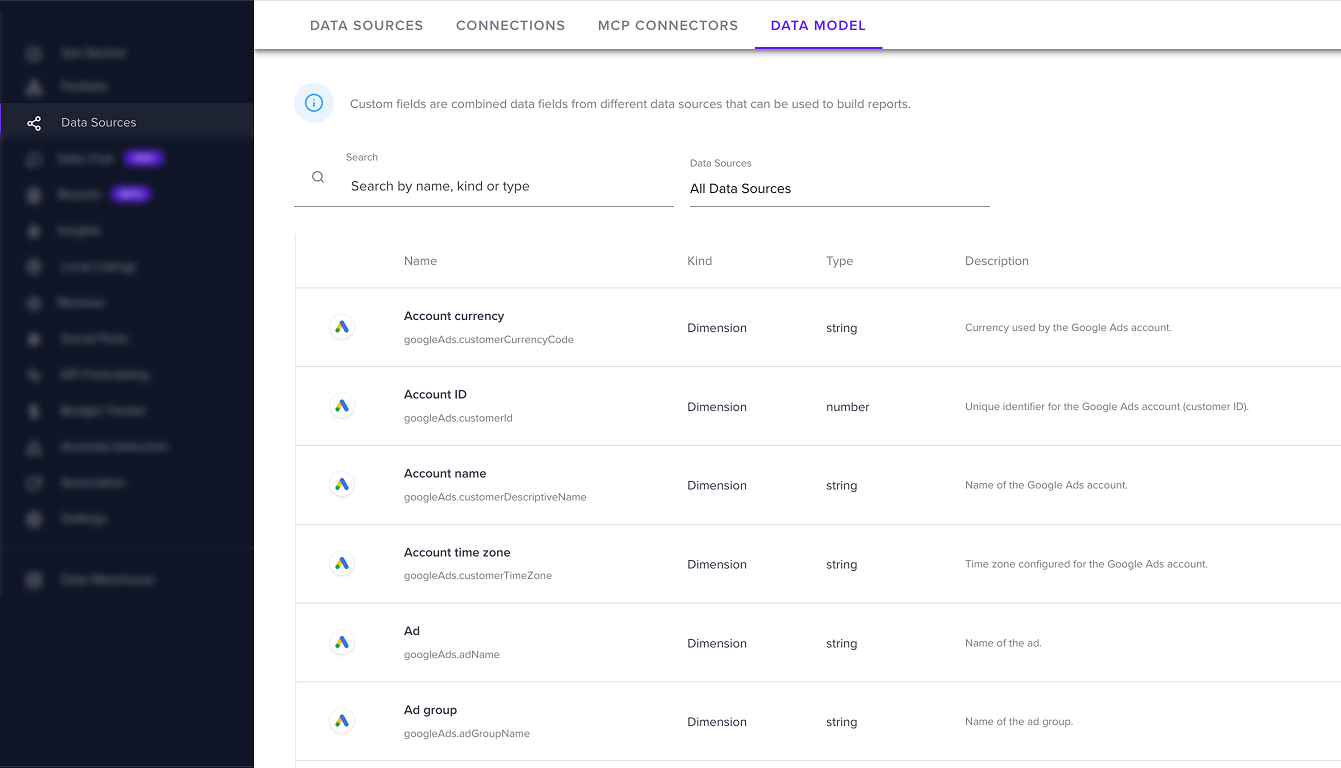
Go to Data Sources → Data Model. With a client selected, you see that client’s connected sources plus any account-wide custom fields. With All Clients selected, you can manage account-wide custom fields. Search matches name, kind and type, and the source filter narrows the list to a single platform, Unified or Custom.
| Problem | What to check |
|---|---|
| A platform’s fields are missing | That platform isn’t connected to this client. Connect a data source, or check that you have the right client selected. |
| A unified field shows zero for one platform | That platform isn’t mapped for this field (for example, Meta for conversions). Break the card down by unified.source, or use the platform field instead. |
| A custom field is missing from a picker | It’s scoped to a different client, or its kind doesn’t match the control (a metric picker won’t show dimensions). |
| Claude or your agent returns a different number | Check which field keys the query used. A platform field like facebookAds.spend and unified.spend answer different questions. |
| Looking for BigQuery export or pipelines | That’s the Data Warehouse, which copies raw rows into BigQuery. The Data Model defines what fields mean. See Creating a Pipeline. |
Thanks a lot for your feedback! If you’d like a member of our support team to respond to you, please send a message here
Oops! Something went wrong while submitting the form.
Thanks a lot for your feedback! If you’d like a member of our support team to respond to you, please send a message here
Oops! Something went wrong while submitting the form.