
General
Data Sources | General
Fields & Formulas
Data Sources | Fields & Formulas
Connections
Data Sources | Connections
Creating & Sharing
Reports | Creating & Sharing
Report Editing
Reports | Editing
Report Config
Reports | Report Config
Chart Cards
Reports | Chart Cards
Content Cards
Reports | Content Cards
General
Data Chat | General
General
AI Visibility | General
General
AI | General
MCP (Model Context Protocol)
AI | MCP (Model Context Protocol)
General
Clients | General
General
Integrations | General
Webhook — Local & Reviews
Integrations | Webhook — Local & Reviews
Webhook — Automation Payloads
Integrations | Webhook — Automation Payloads
Webhook — Other
Integrations | Webhook — Other
Account & Billing
Settings | Account & Billing
Users
Settings | Users
Comments & Notes
Settings | Comments & Notes
Notifications
Settings | Notifications
FAQ
Settings | FAQ
Other
Settings | Other
General
KPI Forecasting | General
Settings & Status
KPI Forecasting | Settings & Status
Seasonality
KPI Forecasting | Seasonality
Metrics by Source
KPI Forecasting | Metrics by Source
General
Budget Tracking | General
General
Anomaly Detection | General
General
Automation Jobs | General
Change History
Automation Jobs | Change History
URL & Page Checkers
Automation Jobs | URL & Page Checkers
Local & Reviews
Automation Jobs | Local & Reviews
Search Console
Automation Jobs | Search Console
Managing Insights
Insights | Managing Insights
Change History
Insights | Change History
URL & Page
Insights | URL & Page
Local & Reviews
Insights | Local & Reviews
Other Insight Types
Insights | Other Insight Types
General
Local Listings | General
Profiles & Content
Local Listings | Profiles & Content
Performance & Activity
Local Listings | Performance & Activity
Media
Local Listings | Media
Categories & Services
Local Listings | Categories & Services
General
Reviews | General
General
Social Posts | General
Creating Posts
Social Posts | Creating Posts
Managing Posts
Social Posts | Managing Posts
Pipelines
Data Warehouse | Pipelines
Access & Credits
Data Warehouse | Access & Credits
Source Fields
Data Warehouse | Source Fields
Data Studio
Data Warehouse | Data Studio
BigQuery
Data Warehouse | BigQuery
General
Clients | General
General
Integrations | General
MCP
Integrations | MCP
Webhook — Automation Payloads
Integrations | Webhook — Automation Payloads
Webhook — Local & Reviews
Integrations | Webhook — Local & Reviews
Webhook — Other
Integrations | Webhook — Other
Account & Billing
Settings | Account & Billing
Users
Settings | Users
Comments & Notes
Settings | Comments & Notes
Notifications
Settings | Notifications
FAQ
Settings | FAQ
Other
Settings | Other
Settings | Account & Billing
Insights | Managing Insights
Integrations | General
Settings | Comments & Notes
Settings | Users
Reports | Creating & Sharing
AI | General
AI | General
AI Visibility | General
AI Visibility | General
AI Visibility | General
Integrations | Webhook — Other
Reports | Content Cards
Anomaly Detection | General
Anomaly Detection | General
Anomaly Detection | General
Insights | Other Insight Types
Anomaly Detection | General
Integrations | Webhook — Other
Anomaly Detection | General
Local Listings | General
Reviews | General
AI Visibility | General
Reports | Chart Cards
Local Listings | Profiles & Content
Data Warehouse | Pipelines
Integrations | Webhook — Automation Payloads
Integrations | Webhook — Automation Payloads
Integrations | Webhook — Automation Payloads
Integrations | Webhook — Automation Payloads
Integrations | Webhook — Local & Reviews
Integrations | Webhook — Automation Payloads
Integrations | Webhook — Local & Reviews
Integrations | Webhook — Local & Reviews
Integrations | Webhook — Local & Reviews
Integrations | Webhook — Automation Payloads
Automation Jobs | General
Automation Jobs | General
Integrations | Webhook — Automation Payloads
Integrations | Webhook — Automation Payloads
Integrations | Webhook — Automation Payloads
Automation Jobs | General
Integrations | Webhook — Automation Payloads
Integrations | Webhook — Automation Payloads
Insights | Managing Insights
Reports | Chart Cards
Reports | Creating & Sharing
Budget Tracking | General
Budget Tracking | General
Budget Tracking | General
Budget Tracking | General
Budget Tracking | General
Budget Tracking | General
Integrations | Webhook — Other
Budget Tracking | General
Budget Tracking | General
AI | MCP (Model Context Protocol)
Local Listings | General
Local Listings | Media
Social Posts | General
Settings | Account & Billing
Reports | Editing
Reports | Creating & Sharing
Local Listings | Categories & Services
Local Listings | Categories & Services
Local Listings | Categories & Services
Settings | Users
AI Visibility | General
Settings | Other
Clients | General
Clients | General
Clients | General
Reports | Chart Cards
Settings | Notifications
AI Visibility | General
Data Sources | General
Integrations | General
Integrations | General
AI | MCP (Model Context Protocol)
AI | MCP (Model Context Protocol)
Data Sources | Connections
Data Sources | Connections
Data Sources | Connections
Data Sources | Connections
Data Sources | Connections
Data Sources | Connections
Data Sources | Connections
Data Sources | Connections
Data Sources | Connections
Local Listings | Media
Data Warehouse | Data Studio
Data Warehouse | Data Studio
Data Warehouse | Data Studio
KPI Forecasting | General
Reports | Creating & Sharing
Reports | Report Config
Reports | Creating & Sharing
Clients | General
Data Warehouse | Data Studio
KPI Forecasting | General
Data Warehouse | Pipelines
Data Warehouse | BigQuery
Social Posts | Creating Posts
Automation Jobs | General
Social Posts | Creating Posts
Anomaly Detection | General
Automation Jobs | General
Reports | Editing
Data Chat | General
Data Chat | General
Data Sources | General
Data Sources | General
Data Sources | General
Data Warehouse | Data Studio
Data Warehouse | Access & Credits
Data Warehouse | Access & Credits
Data Warehouse | Access & Credits
Clients | General
Settings | Users
Settings | Comments & Notes
Data Sources | General
Reports | Chart Cards
Social Posts | Managing Posts
Social Posts | Creating Posts
Data Warehouse | Data Studio
Settings | Notifications
Data Warehouse | Pipelines
Settings | Comments & Notes
Settings | Notifications
Settings | Notifications
Reports | Creating & Sharing
Reports | Creating & Sharing
Social Posts | Managing Posts
Data Warehouse | Pipelines
KPI Forecasting | Metrics by Source
Automation Jobs | URL & Page Checkers
Insights | URL & Page
Data Warehouse | Source Fields
KPI Forecasting | Metrics by Source
Reviews | General
Reports | Report Config
Reports | Report Config
Data Sources | General
Data Sources | Fields & Formulas
AI | General
Data Warehouse | Source Fields
Settings | FAQ
AI Visibility | General
Settings | FAQ
Data Sources | Connections
Data Sources | Connections
Automation Jobs | Change History
Insights | Change History
KPI Forecasting | Metrics by Source
Automation Jobs | URL & Page Checkers
Insights | URL & Page
Automation Jobs | Change History
Insights | Change History
KPI Forecasting | Metrics by Source
Data Warehouse | BigQuery
Automation Jobs | Change History
Insights | Change History
KPI Forecasting | Metrics by Source
Data Warehouse | Source Fields
Automation Jobs | Local & Reviews
Insights | Local & Reviews
Automation Jobs | Local & Reviews
Insights | Local & Reviews
Automation Jobs | Local & Reviews
Insights | Local & Reviews
Data Warehouse | Source Fields
Data Sources | Connections
Data Sources | Connections
Automation Jobs | Change History
Insights | Change History
Automation Jobs | Local & Reviews
Insights | Local & Reviews
Data Warehouse | Source Fields
Data Warehouse | Source Fields
Budget Tracking | General
KPI Forecasting | Settings & Status
Data Warehouse | Data Studio
Data Chat | General
Settings | Comments & Notes
Local Listings | Profiles & Content
AI Visibility | General
Settings | Other
Settings | FAQ
Reports | Content Cards
Reports | Content Cards
Local Listings | Media
Insights | Managing Insights
Insights | Managing Insights
Integrations | General
AI | MCP (Model Context Protocol)
KPI Forecasting | Settings & Status
KPI Forecasting | Settings & Status
KPI Forecasting | General
Integrations | Webhook — Other
KPI Forecasting | Settings & Status
Insights | Other Insight Types
KPI Forecasting | General
KPI Forecasting | Seasonality
KPI Forecasting | Settings & Status
KPI Forecasting | Seasonality
Reports | Chart Cards
Local Listings | Performance & Activity
Local Listings | Performance & Activity
Local Listings | Profiles & Content
Local Listings | Media
Integrations | General
Data Warehouse | BigQuery
Data Warehouse | BigQuery
Data Warehouse | Data Studio
Settings | Other
Data Chat | General
Local Listings | Media
Local Listings | Media
Local Listings | Media
Social Posts | General
Local Listings | Media
Local Listings | Media
Data Chat | General
KPI Forecasting | Metrics by Source
Automation Jobs | URL & Page Checkers
Insights | URL & Page
Reports | Chart Cards
AI | MCP (Model Context Protocol)
Local Listings | Profiles & Content
Automation Jobs | URL & Page Checkers
Insights | URL & Page
Reports | Report Config
Reviews | General
Data Warehouse | Pipelines
Local Listings | General
Clients | General
Social Posts | Creating Posts
Reports | Creating & Sharing
AI Visibility | General
Social Posts | Managing Posts
Local Listings | Profiles & Content
Data Warehouse | Data Studio
Reports | Report Config
Insights | Managing Insights
Reviews | General
Reports | Editing
Reports | Creating & Sharing
Reports | Report Config
Insights | Managing Insights
Reviews | General
Reviews | General
Reviews | General
Automation Jobs | URL & Page Checkers
Insights | URL & Page
Automation Jobs | URL & Page Checkers
KPI Forecasting | Settings & Status
Clients | General
Reports | Chart Cards
Social Posts | Managing Posts
Automation Jobs | Search Console
Insights | Other Insight Types
Automation Jobs | Search Console
Insights | Other Insight Types
Local Listings | General
Clients | General
Reports | Creating & Sharing
Integrations | General
Local Listings | Categories & Services
Local Listings | Categories & Services
Settings | Account & Billing
Reports | Creating & Sharing
AI Visibility | General
Social Posts | General
AI Visibility | General
AI Visibility | General
Settings | FAQ
Settings | Account & Billing
Reports | Content Cards
Data Sources | Fields & Formulas
Reports | Report Config
Reports | Content Cards
Settings | Account & Billing
Data Sources | Fields & Formulas
Reviews | General
Settings | Account & Billing
Clients | General
Data Warehouse | Data Studio
Settings | Users
Settings | Users
Social Posts | General
Settings | Other
Local Listings | Performance & Activity
Settings | Comments & Notes
Integrations | Webhook — Other
Settings | FAQ
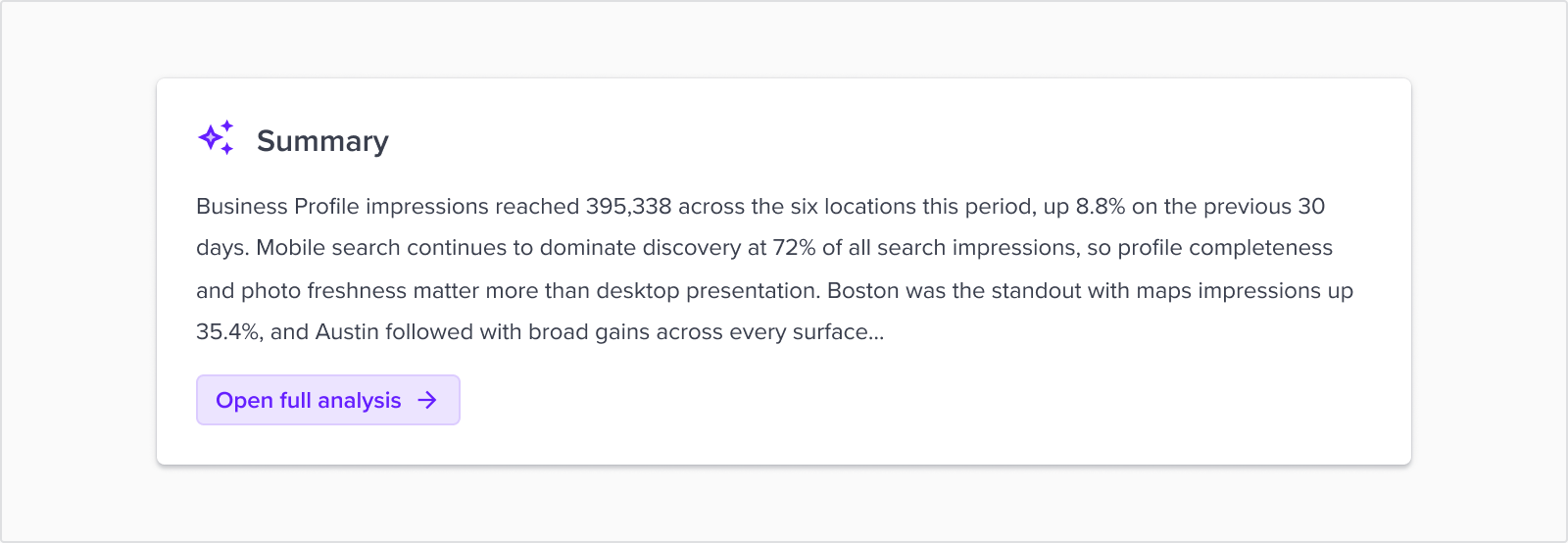
An analysis is the narrative for a reporting period (month, week, quarter, or custom range). A card can hold many periods; every Published period appears in a rotating carousel on the live report, and viewers can open a drawer to browse the full history.
Each period has a label, a headline (short overview on the card), and content (full markdown when the card is opened).
You must add a reporting period before Add Card is available.
On the Create Analysis tab, choose a mode:
Generation runs in the background and can take a few minutes - it's a full agent making several tool calls (data queries, KPI/budget checks, prior actions) before it writes anything, not a single instant response. It won't pause to ask you questions; it makes its own reasonable calls and finishes the draft. Headline and content fill in as the draft arrives - review and edit them afterward.
See AI Analysis Generation for the full list of tools the agent uses and example prompts for the Additional context field. Account/client Rules also guide tone and terminology.
This adds a period with an empty headline and content. Switch to the Editor preview pane to write (or edit Markdown source), then save.
You can have more than one analysis for the same period; if one already exists, the UI warns you and recommends a distinct name.
The Analysis card itself is a carousel of analysis periods (headline and content). Title, description, icon, and card styling for light and dark modes, same idea as other content cards.
The report’s date range filters which analysis periods can show. The analysis period’s start and end dates must fall within the report date range.
For example, if the report date range is last month, the card only shows the analysis period with the same range. For most use cases, that means a single analysis period and no carousel.
If you extend the report date range to a year and create monthly analysis periods, the card will show 12 monthly analyses in the carousel, and users can toggle between them.
A period is eligible to show only when its status is Published and it has a headline or content. If more than one period is eligible, the card rotates through their headlines about every 7 seconds. Viewers can also open the full analysis drawer to browse every period, not just the newest one.
A Draft period never appears to viewers, regardless of date range. If nothing is eligible — no periods yet, or none are Published with content — the card shows “No analysis available.”
There's no separate archive or hide toggle. To pull a period from the live card while keeping its content for later, set its status back to Draft in the editor - you can publish it again anytime. Delete is a distinct, irreversible action for when you want a period gone for good.
In the editor, Card Preview has its own Preview Date Range control, which shows only Published periods that overlap the window you pick - a simulation to help you author content, not a reflection of how the live card actually decides what to show. The live card ignores date range entirely and shows every eligible Published period. Don't use the preview to predict exactly what viewers will see; use it to check how a specific period reads in isolation.
Thanks a lot for your feedback! If you’d like a member of our support team to respond to you, please send a message here
Oops! Something went wrong while submitting the form.
Thanks a lot for your feedback! If you’d like a member of our support team to respond to you, please send a message here
Oops! Something went wrong while submitting the form.